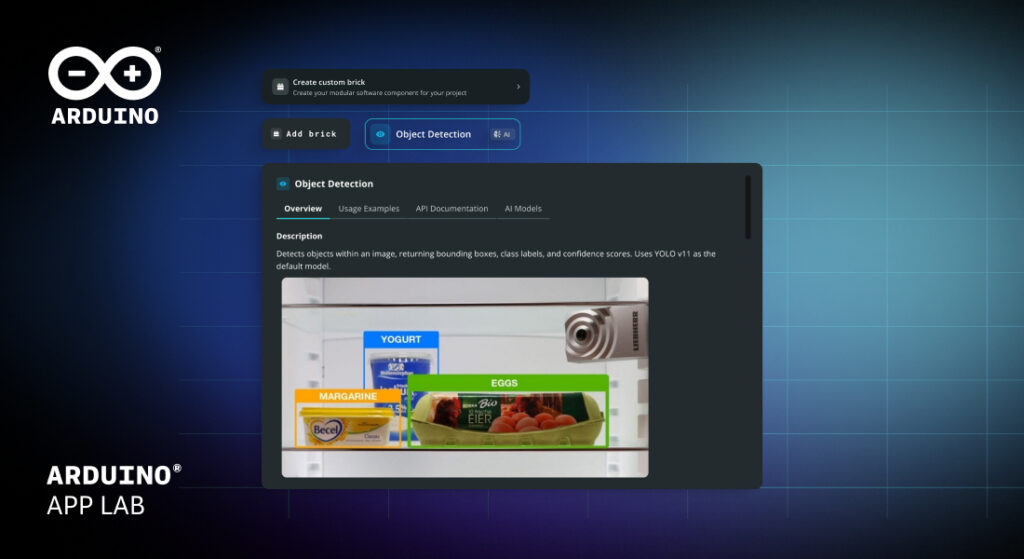
Remember at Arduino Days when we teased something that would fundamentally change how you build with App Lab? That moment is here. Arduino App Lab 0.7 introduces Custom Bricks and with it, the power to extend the apps for your Arduino® UNO Q board and enjoy more creative freedom. Alongside this release, we are also introducing a new documentation experience designed to make learning App Lab feel more natural and intuitive from the very first step.
What are Custom Bricks?
Bricks are modular software components that add ready-to-use functionalities to your projects. If you’re new to Arduino App Lab, it helps to think about them as building blocks for complex features – without the complexity.
Until now, you’ve been working with the built-in Bricks we provide such as AI Audio and Computer Vision, or Web User Interface. Now you can build your own.
Custom Bricks transform App Lab from a powerful tool into an extensible platform. Build something once, package it as a Brick, and reuse it across every app you create. Connect to databases and integrate AI models. If you can code it in Python, you can make a Brick out of it.
Two flavors of custom
Custom Bricks come in two varieties, suited to different levels of complexity:
1. Python-only Bricks
The simplest approach. Create a Python library that exposes an API to your main program. Perfect for utility functions, data processing, or custom algorithms you want to reuse across projects.
2. Python + Container Bricks
Add Docker containers to your Brick for more powerful capabilities. Run specialized tools, APIs, or services alongside your app.
See Custom Bricks in action: OCR in minutes
During Arduino Days, our colleague Davide demonstrated Custom Bricks by building an OCR (Optical Character Recognition) Brick from scratch, live on stage. He took an object detection example, created a custom Brick, added a Docker container running Tesseract OCR, wrote the Python interface, and had working text recognition in a matter of minutes.
The result? A reusable OCR Brick that any app can import and use with a single function call. Upload an image, get back the text. Simple, powerful, and now part of his development toolkit forever.
Watch Davide’s full Custom Brick demo from Arduino Days 2026
How to create your first Custom Brick
Getting started is straightforward — just follow these easy steps:
1. Create or open an app in App Lab.
2. Select “Add Brick.”
3. At the bottom of your screen, select “Create Custom Brick.”
4. Give it a name and let the system work its magic.
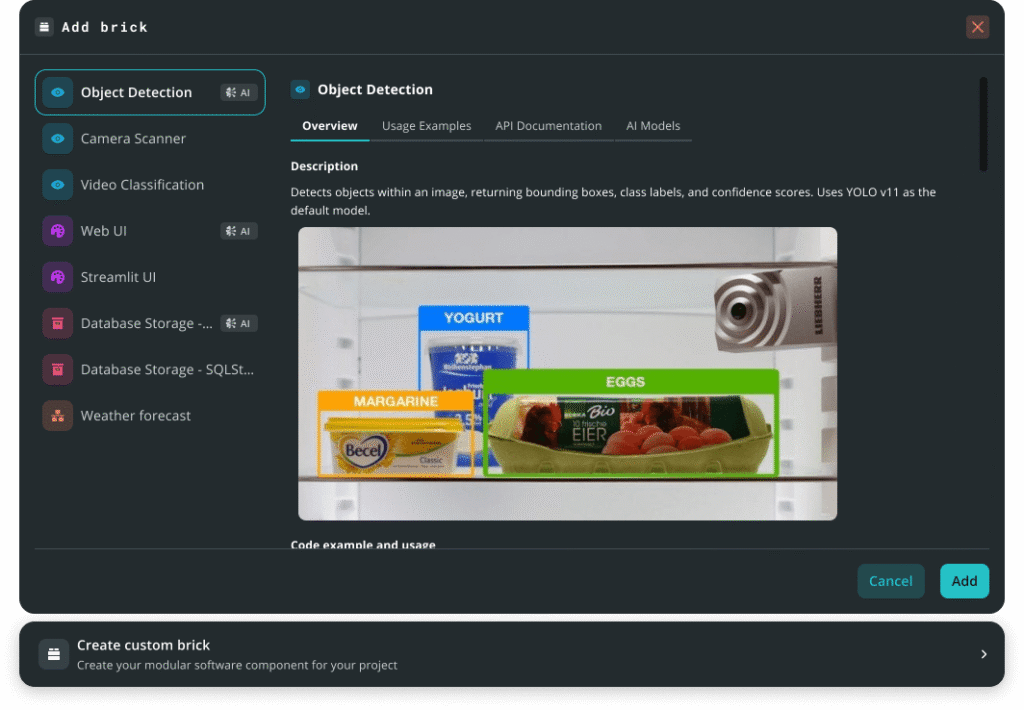
Create Custom Brick is available at the bottom bar inside a Brick
App Lab automatically generates a folder structure with everything you need:
brick_config: Your Brick’s identity and configuration – ID, name, variables, etc.brick_compose: A Docker Compose file for any containers__init__.py: Your Python code, where you define the functions and classes that make your Brick useful
Each Custom Brick lives locally in your app, fully under your control. Define a function like hello_arduino() in your Brick’s __init__.py, then import and call it from main.py.
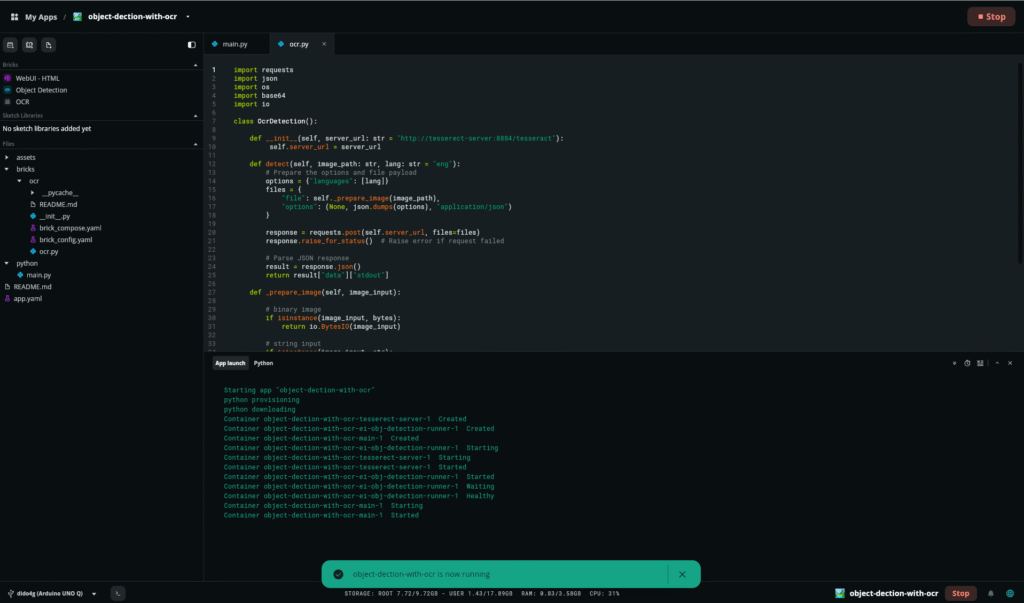
A folder structure is automatically added on the left hand side upon the creation of your Custom Brick
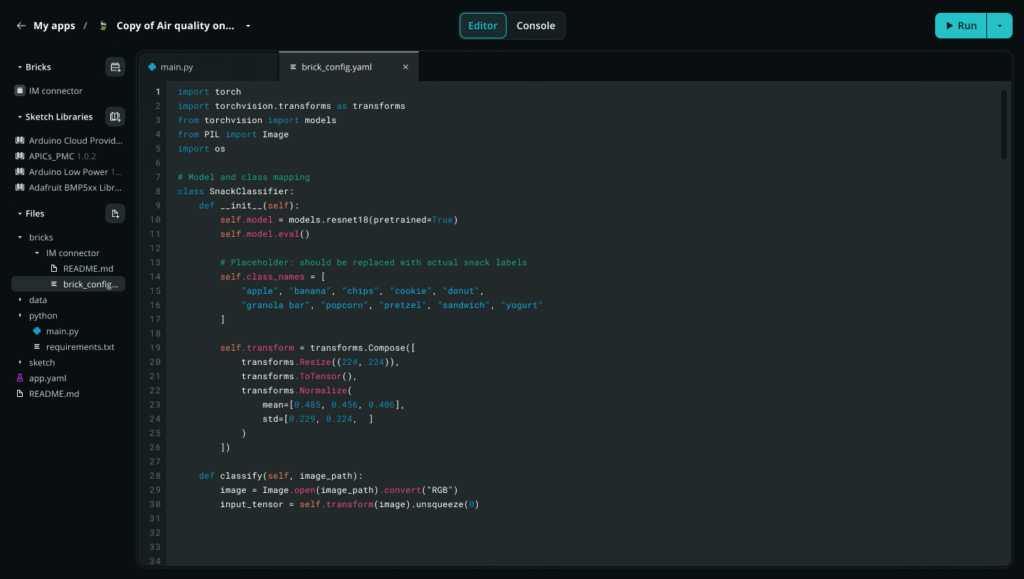
Brick_config lets you define your Custom Brick’s identity and setup
What will you build with a Custom Brick?
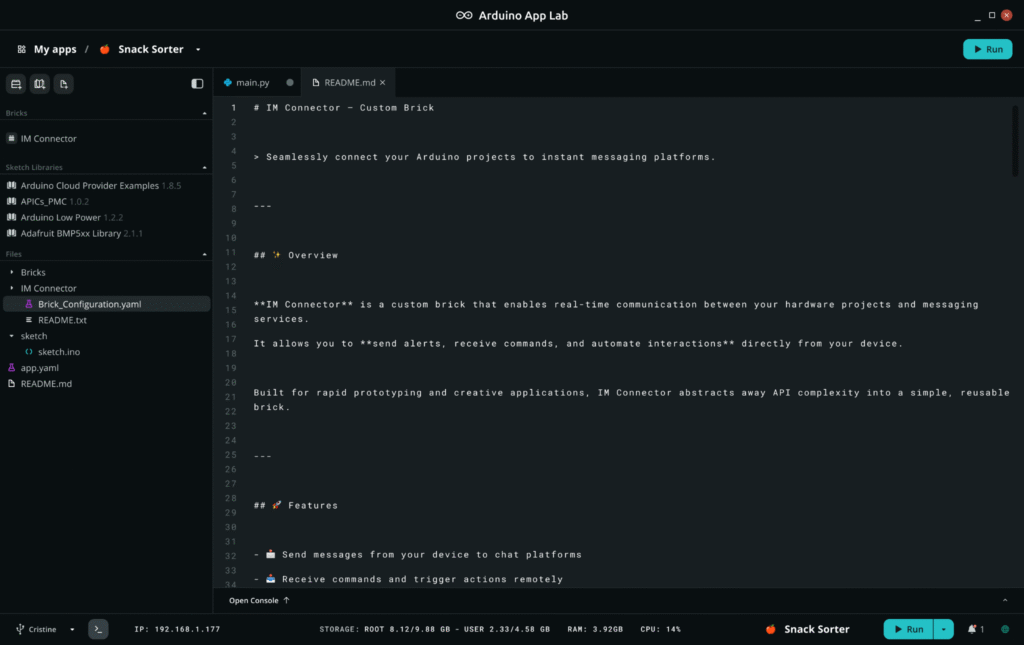
A Custom Brick in App Lab 0.7
Custom Bricks unlock new possibilities, new freedom:
- Connect to any database (PostgreSQL, MongoDB, MariaDB – you name it)
- Integrate custom ML models trained for your specific use case
- Add containerized IoT services such as MQTT brokers, dashboard managers or your own middleware
- Interface with audio/video processing tools
- Build domain-specific libraries for your industry or research
- Package complex workflows into simple, sharable components
The OCR demo is just the beginning. We can’t wait to see what the Arduino community creates.
What else is new in 0.7?
In this release, in addition to Custom Bricks, we’ve made Arduino App Lab smoother and more intuitive across the board:
- Console panel redesign: The console (including logs and serial monitor) is no longer a separate tab – it’s now integrated directly into the editor page.
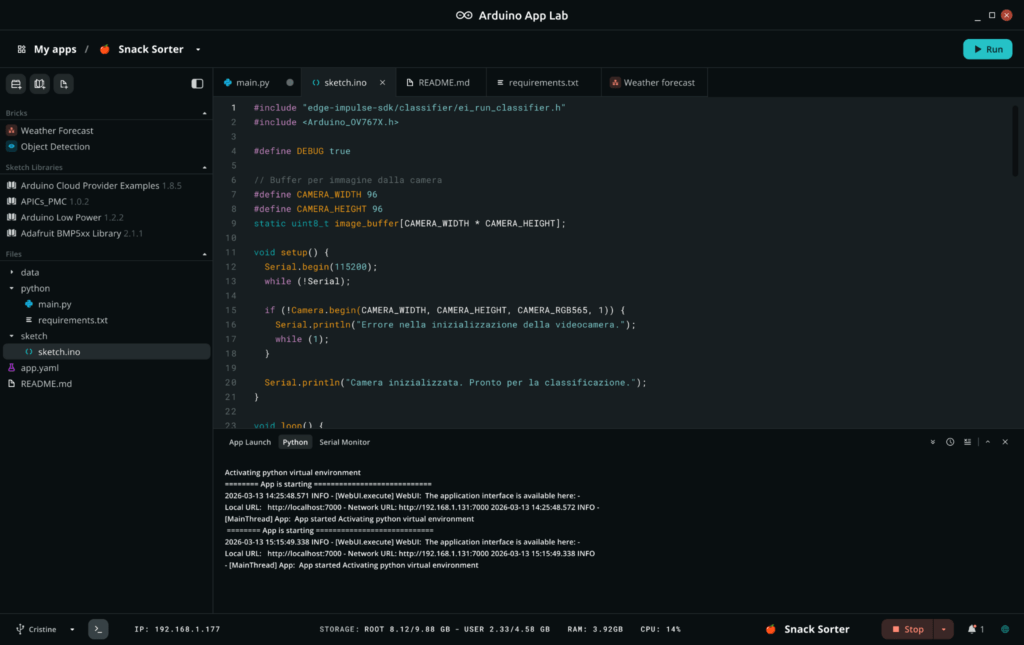
Enhanced App Lab editor with the integrated console panel at the bottom
- Drag-and-drop file management: Your file tree now supports drag-and-drop organization. Plus, you can also rename and delete folders directly. And much more: Bug fixes, performance improvements, and quality-of-life updates throughout.
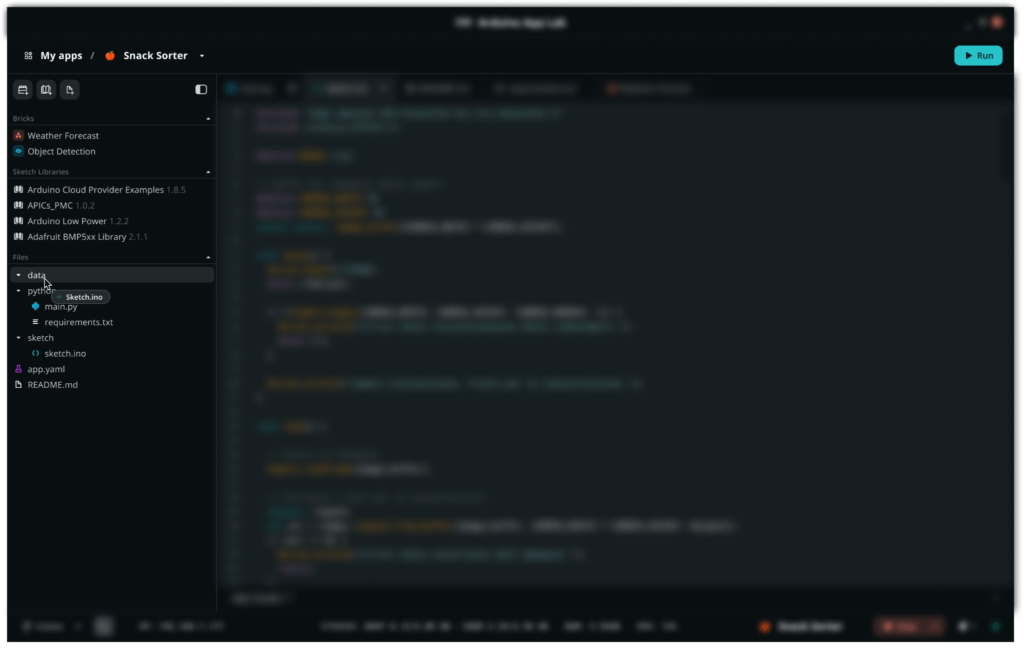
Drag-and-drop file management is now possible in Arduino App Lab 0.7 version
New App Lab documentation experience
Over time, Arduino App Lab has grown in capabilities, and with it, the documentation has naturally expanded as well. What we noticed is that users often wanted a quicker way to find the right information for their specific goal, without needing to scan through longer pages or figure out where to start.
That’s why App Lab content is now organized by user journey and feature, with clear sections for getting started, setup, Bricks, and apps. A guided flow on the homepage helps you quickly reach the most relevant information (see below).
We also added new setup guides for each configuration, a dedicated Bridge API reference, and full Arduino App CLI command documentation to support more advanced use cases.
So it feels less like searching through a manual and more like being guided through a workspace where everything is ready when you need it.
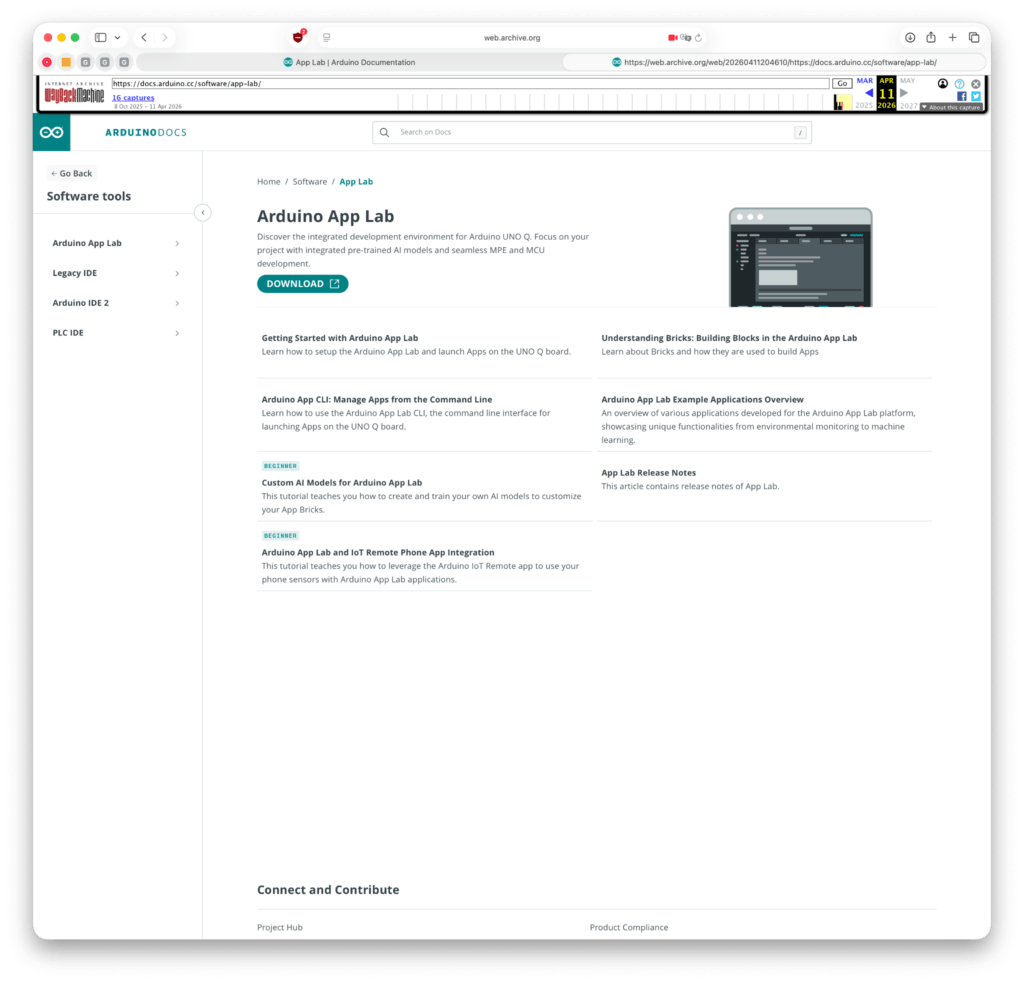
A guided flow on the documentation homepage helps you quickly reach the most relevant information
Get started today
Arduino App Lab 0.7 is available now. Update through the app or download from this page. And check-out our refreshed App Lab documentation site.
Did you build something cool with Custom Bricks? Share it with the community on Arduino Project Hub – we’re excited to see what you do with this cool new update.
Arduino and UNO are trademarks or registered trademarks of Arduino S.r.l.
The post Arduino® App Lab 0.7: Custom Bricks are here! appeared first on Arduino Blog.
Read more here: https://blog.arduino.cc/2026/04/29/arduino-app-lab-0-7-custom-bricks-are-here/